Link in bio for musicians
How to build a link in bio for musicians that handles buy links with prices, not just traffic routing.

Key Takeaways
Profile Blocks puts your buy links, listen links and merch directly on your public page with pricing attached.
Headings group your blocks so visitors see what matters without scrolling through one flat list.
Hide a block instead of deleting it when a campaign ends and bring it back later in seconds.
One public page replaces the separate link-in-bio tool you're updating in parallel every time something changes.
Profile Blocks is Music Artist Manager's link-in-bio mechanism, built directly into your public artist page. If you're currently using Linktree or Beacons and updating two separate pages every time you launch something, this consolidates your bio link, releases and contact details in one place. Buy links carry actual prices, headings let you group blocks by category, and you can hide any block temporarily without deleting it.
If you are running a Linktree page for your artist project alongside your Music Artist Manager account, you are maintaining two separate public pages. When you announce a new release, that is two pages to update. When you add a new merch link or change a booking contact, that is two more edits. When a festival closes and you remove its logo from one page, you have to remember to pull the same link from the other.
Profile Blocks solves this by building the link-in-bio mechanism directly into the public artist page Music Artist Manager already generates from your project data. No separate tool. No separate login. No URL split between a third-party service and your own artist page.
What profile blocks actually does
Profile Blocks is Music Artist Manager's structured link-in-bio feature. It lives on your public artist page, the same page that already displays your releases, images, biography and contact details. You add blocks to the page using the same in-place editor you use to manage the rest of your profile.
Each block is one of three types:
- Plain link: a URL with a label. Standard link-in-bio behaviour.
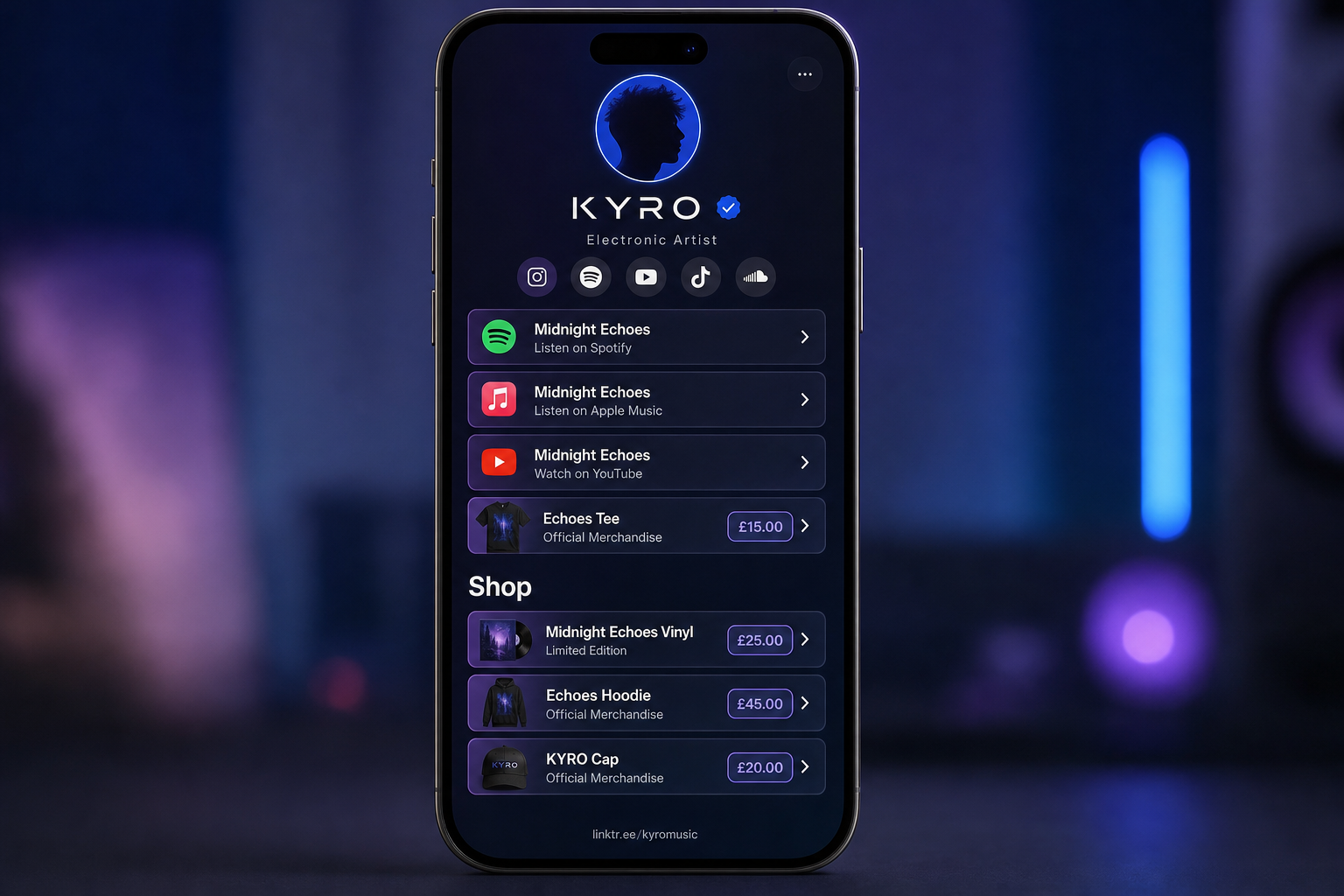
- Buy link: a URL with a label and a price field. Built specifically for selling: merch, beat licences, feature slots, ticket tiers, anything with an actual sale price that you want displayed next to the link.
- Heading: a text label used to group the blocks underneath it. This lets you separate "Listen" links from "Buy" links or "Contact" links without building a more complex page structure.
Blocks are ordered. You control the sequence they appear in. Each block can be individually shown or hidden without being deleted, which means you can hide a block for an old single campaign or a closed pre-order without losing the link. If that campaign comes back, you show the block again rather than rebuilding it.
Why this matters if you currently use linktree or beacons
The honest argument here is consolidation, not features you cannot get elsewhere.
If you are already using Music Artist Manager for release tracking, royalty statements and manager chat, and you are separately paying for or maintaining a Linktree or Beacons page, Profile Blocks folds that link-in-bio function into the page Music Artist Manager is already building for you. One page. One update cycle.
The buy-link type is the specific differentiator. Many basic link-in-bio tools either do not offer a price field at all or gate it behind a paid tier. Profile Blocks includes it as a standard block type because independent artists frequently sell directly: merch runs, beat store links, Patreon tiers with specific monthly prices, feature slots with quoted rates. A buy link displays the price inline with the link, so the person clicking already knows what they are committing to before they leave your page.
Headings are the second structural advantage. Without headings, a link-in-bio page is a flat list, and the artist has to rely on emoji or creative labels to visually separate link types. Profile Blocks lets you add a heading block labelled "Listen", then place your Spotify, Apple Music and Bandcamp links underneath it, then add another heading labelled "Buy" and group your merch store and ticket links there. The page structure is explicit, not improvised.
How it works in practice
Profile Blocks uses the same in-place editor that manages the rest of your public artist page. You do not switch to a separate dashboard or learn a new interface. You are already editing your bio, your images, your release grid. Blocks are added in the same mode.
You add a block, choose its type, fill in the label and URL, and if it is a buy link, you add the price. You drag blocks into the order you want them to appear. If you need to hide a block temporarily, you toggle its visibility off. It stays in your block list, but it does not display on the public page. When you need it again, you show it.
This is version control for your bio links. You are not deleting and recreating. You are showing and hiding.
Who this is for
Profile Blocks is built for independent artists and managers who are:
- Currently using a standalone link-in-bio tool alongside Music Artist Manager and want to reduce the number of separate tools they maintain.
- Selling directly: merch, beats, features, tickets, Patreon tiers, anything with a specific price that should be displayed inline with the link.
- Running campaigns with discrete start and end dates (pre-orders, tour cycles, limited merch drops) and want to hide links cleanly when the campaign ends without losing the block structure for the next time.
If you are not selling anything directly and you only need a flat list of streaming links, Profile Blocks will work but it is not built primarily for that use case. The buy-link and heading features exist because independent artists run commerce, not just content.
Honest limits
Profile Blocks is a feature of your public artist page, not a separate standalone app. That means the same account-tier gating that applies to the rest of your public page applies here: portfolio caps, customisation options, and visibility settings are managed at the page level, not per block.
This is not a full page builder. You cannot add image blocks, video embeds, newsletter signup forms or social media feeds. It is a structured link list with buy-link support and grouping. If you need a full custom landing page, Profile Blocks will not replace that. If you need a focused, maintainable link-in-bio page that handles pricing and groups links clearly, it will.
Why we built this into the public page instead of as a separate tool
The brief for Profile Blocks was: an independent artist should not need to maintain two separate public pages. If Music Artist Manager is already generating a public page from your project data, your releases, your bio, your images, then your link-in-bio function should live there too.
The alternative is what most artists currently do: split their public presence between a third-party link-in-bio service and whatever page their management software or website generates, then manually keep both in sync. That split is a maintenance tax. Every link update, every campaign change, every price adjustment happens twice.
Profile Blocks collapses that split. Your public artist page includes your links. When you update your page, your links update with it.
How to use profile blocks if you are migrating from linktree or beacons
1. Open your current link-in-bio tool and list every active link, its label, its URL, and if it is a purchase link, its price.
2. In Music Artist Manager, go to your public artist page editor and add a block for each link. Use plain links for content (streaming, video, social), buy links for commerce (merch, beats, tickets), and headings to group them.
3. Order the blocks to match your current page structure, or improve it if your current page is a flat list that could benefit from grouping.
4. Publish the page and test every link. Click through to confirm the URLs are correct and the prices display as expected.
5. Update your Instagram, TikTok, Twitter and email signature to point to your Music Artist Manager public page URL instead of your old link-in-bio URL.
6. Leave the old page live for one week in case you missed a link or need to cross-reference, then archive or delete it.
The migration is manual but it is not complex. You are copying a list from one tool to another. The advantage is that once it is done, you are maintaining one page instead of two.
The commission comparator argument
A paid Linktree or Beacons account costs between £4 and £8 per month, depending on tier and billing cycle. That is not a large absolute figure, but it is a recurring cost for a function that could be consolidated into a tool you are already paying for.
If you are using Music Artist Manager's public page feature and you are separately paying for a link-in-bio tool, you are paying twice for public-facing artist presentation. Profile Blocks removes that duplication.
The more relevant comparison is not subscription cost. It is update cost. Every time you change a link, add a new campaign, or pull an expired pre-order, you are editing two pages if you run a separate link-in-bio tool. That is not a financial cost. It is an operational one. Profile Blocks reduces the number of places you have to touch when your project changes.
What you should do now
If you are currently using a standalone link-in-bio tool and you are also using Music Artist Manager, open both tools side by side and count how many times you have edited the same information in both places in the last month. If that number is more than zero, Profile Blocks is worth testing.
Add your current links to Profile Blocks. Use headings to group them. Use buy links for anything with a price. Publish the page and compare it to your current link-in-bio page. If the Music Artist Manager version does the same job, switch your bio URLs over and stop maintaining two pages.
If you are not currently using Music Artist Manager, Profile Blocks is one feature of a broader artist management platform. It is not sold separately. If you are evaluating link-in-bio tools and you are also evaluating management software, it is worth knowing that Music Artist Manager includes a structured link-in-bio feature as part of your public page, rather than requiring a third-party integration or a separate subscription.
The goal is not to replace every possible link-in-bio tool. The goal is to stop independent artists and managers from maintaining two separate public pages when one will do the job.
Ready to plan your next release?
Stop piecing together spreadsheets and scattered notes. Get your free release strategy and keep your whole rollout in one place.
Written By
Gavin Alexander
Senior Marketeer
As the founder of Music Artist Manager, Gavin has spent years at the intersection of music and technology. Seeing firsthand how chaotic release rollouts and split sheets can be, he designed a platform that brings major-label infrastructure to independent artists and their teams. He writes extensively about industry trends, artist leverage, and workflow optimisation.