Managing your roster: The helicopter view
Managing more than one artist at a time means you are constantly moving between projects, contexts, and priorities. The challenge is not staying on top of each one individually — it is maintaining the view of all of them simultaneously.


Key Takeaways
Access the Helicopter View tab in the MAM Roster Dashboard to consolidate multi-artist timelines and easily identify overlapping campaigns or conflicting tour schedules.
Keep the high-level timeline clear and actionable by filtering out low-priority tasks and focusing strictly on major milestones like releases, tour dates, and funding deadlines.
Standardise milestone naming conventions across your entire roster and utilise shareable read-only links to align external partners without granting them full dashboard access.
Sync your configured Helicopter View timeline with external calendar applications using the Shared Calendar integration settings to maintain roster visibility.
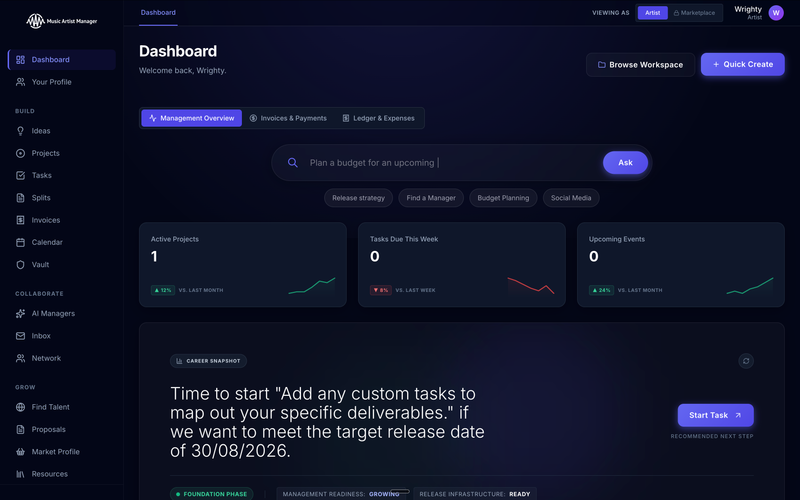
Managing multiple independent artists requires constant context-switching between different release schedules, campaigns, and administrative tasks. While focusing on a single artist's immediate needs is straightforward, maintaining a high-level overview of your entire roster is where operations often break down. The MAM Helicopter View is designed to solve this by consolidating your roster's timelines and key metrics into a single unified dashboard.
Why this matters
Without a centralised high-level view, it is easy for critical deadlines to clash, such as scheduling two major releases on the same day or overlooking a crucial funding application for one artist while deeply involved in another's tour planning. This lack of visibility leads to avoidable administrative bottlenecks, compromised campaign execution, and ultimately, burnt-out management teams.
How to do it
1. Log into your MAM portal and navigate to the Roster Dashboard from the primary left-hand menu.
2. Click on the 'Helicopter View' tab located at the top of the dashboard interface to load the multi-artist timeline.
3. Use the 'Artist Filter' dropdown menu to select the specific artists you want to compare, or leave it blank to view your entire active roster.
4. Toggle the 'Timeline Resolution' switch between weekly, monthly, or quarterly views to match your planning horizon.
5. Review the colour-coded milestone tracks to identify overlapping campaigns, release dates, or conflicting tour schedules.
6. Click directly on any milestone block within the timeline to view task details or drag and drop items to reschedule them instantly.
7. Save your current view as a custom template using the 'Save View' button in the top right corner for quick access in future sessions.
Tips
• Avoid cluttering your timeline by filtering out low-priority tasks; focus the Helicopter View strictly on major milestones like releases, tour starts, and funding deadlines.
• Establish a naming convention for milestones across your entire roster to make the consolidated timeline instantly readable at a glance.
• Use the shareable read-only link feature to keep external partners or booking agents aligned with your roster's overall availability without granting them full dashboard access.
Next steps
Once you have configured your Helicopter View, navigate to the Shared Calendar integration settings to sync your consolidated roster timeline with your external calendar application.
Ready to streamline your workflow?
Stop piecing together spreadsheets and scattered notes. Join the waitlist for Music Artist Manager and get your entire rollout in one place.
Written By
Gavin Alexander
Senior Marketeer
As the founder of Music Artist Manager, Gavin has spent years at the intersection of music and technology. Seeing firsthand how chaotic release rollouts and split sheets can be, he designed a platform that brings major-label infrastructure to independent artists and their teams. He writes extensively about industry trends, artist leverage, and workflow optimisation.