How to use the AI manager: A practical guide
The Collaboration Desk is not a chatbot. It is a set of eight specialist profiles, each built around a specific domain of music management, and each reading your actual project data before it responds.


Key Takeaways
Access the MAM Collaboration Desk and select the specialist profile that matches your immediate task to receive domain-specific, tailored advice.
Ensure your active project folder is correctly linked and keep your data updated so the specialists can synthesise accurate real-time schedules and budgets.
Frame your queries with clear, objective-driven business goals instead of casual search terms to obtain the most actionable steps.
Save your generated steps directly to the MAM Master Planner using the 'Save Action Items' feature to streamline your project management.
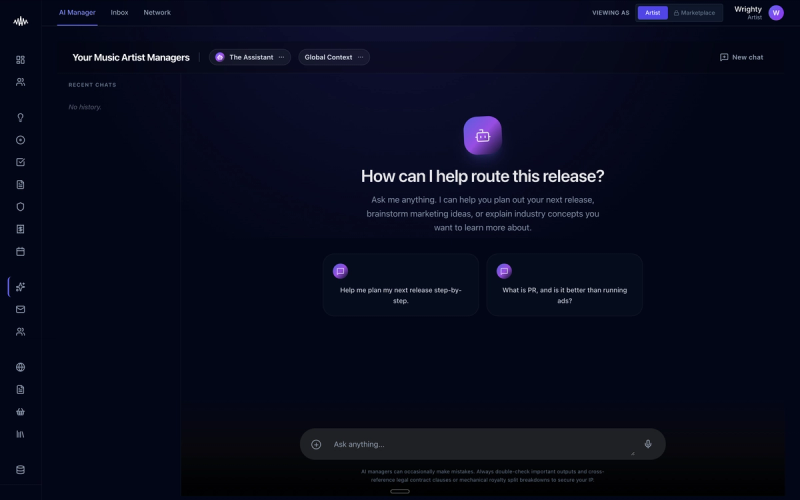
Managing an independent music career often feels overwhelming when you have to balance creative work with marketing, legal, and financial planning. The MAM Collaboration Desk solves this by offering a set of eight specialist profiles, each built around a specific domain of music management. Rather than operating as a generic chatbot, these tools read your actual project data to provide tailored, context-specific guidance.
Why this matters
Without leveraging these tailored profiles correctly, you risk relying on generic, one-size-fits-all advice that fails to account for your unique release cycle, budget constraints, or audience demographics. This disconnect can lead to poorly timed campaigns and misallocated promotional budgets, wasting both your time and financial resources.
How to do it
1. Log in to your MAM dashboard and select the 'Collaboration Desk' tab from the main left-hand navigation menu.
2. Review the eight specialist profiles displayed, such as the Release Strategist or the Financial Adviser, to identify which domain matches your current task.
3. Click 'Select Profile' on your chosen specialist to open the dedicated workspace interface.
4. Verify that your active project folder is linked by checking the 'Linked Data' indicator in the top right corner of the workspace.
5. Type your specific operational goal or query into the prompt field, referencing your active project assets where appropriate.
6. Review the synthesised response, which integrates your real-time stream data, budget sheets, and release timelines.
7. Click 'Save Action Items' to automatically populate your MAM Master Planner with the steps generated by the specialist.
Tips
• Keep your project data up to date, as the specialist profiles can only provide accurate advice if your budget, schedules, and release metadata are current.
• Avoid treating the workspace like a casual search engine; frame your queries with clear business objectives to receive the most actionable steps.
• Switch specialists when your task shifts, rather than asking the Release Strategist for detailed financial forecasting, to ensure you utilise the correct domain training.
Next steps
Navigate to your MAM Workspace now, open the 'Collaboration Desk', and run a quick audit of your upcoming release schedule with the Release Strategist profile.
Ready to streamline your workflow?
Stop piecing together spreadsheets and scattered notes. Join the waitlist for Music Artist Manager and get your entire rollout in one place.
Written By
Gavin Alexander
Senior Marketeer
As the founder of Music Artist Manager, Gavin has spent years at the intersection of music and technology. Seeing firsthand how chaotic release rollouts and split sheets can be, he designed a platform that brings major-label infrastructure to independent artists and their teams. He writes extensively about industry trends, artist leverage, and workflow optimisation.